
Last updated: October 12, 2026 · Skill level: intermediate to advanced.
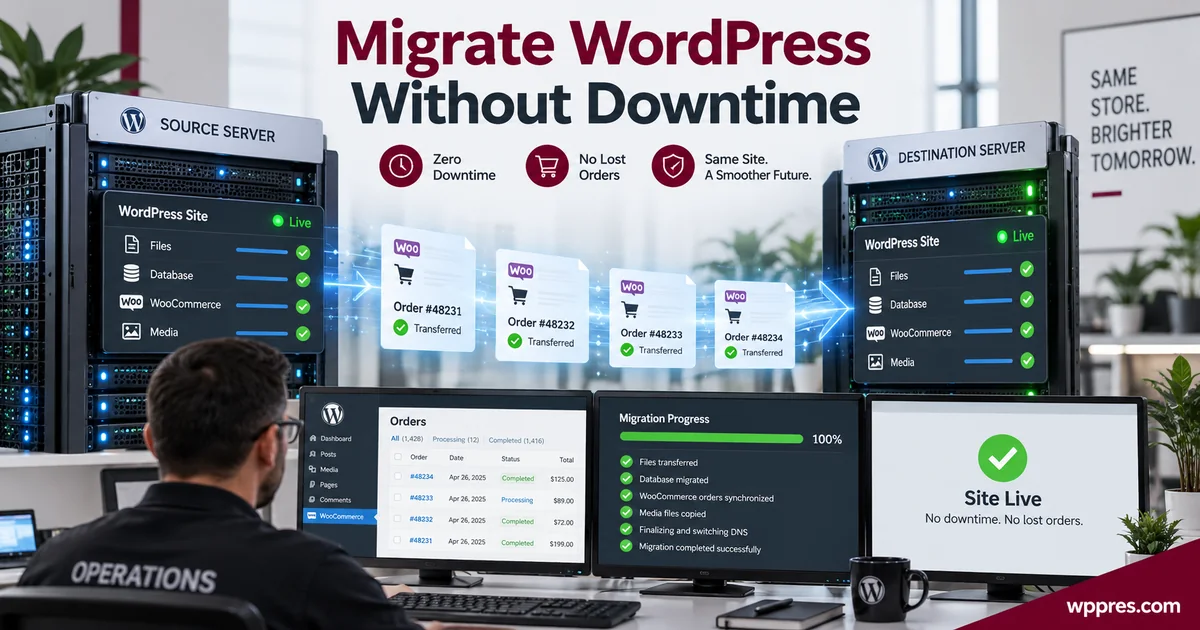
A zero-downtime WordPress migration uses a rehearsed copy, a final data sync and a DNS cutover with the old server still available. For a content site, the final sync may be a short database freeze. For WooCommerce, copy code and historical data first, then capture new orders and customer changes separately so the destination never replaces newer production records with an older database.
“No downtime” means visitors continue reaching a working site during cutover. It does not mean the project has zero risk or zero write controls. A reliable migration defines which server accepts writes, how late changes move, how traffic switches and how to roll back without splitting orders between two databases.
The migration strategy in one table
| Phase | Source site | Destination site | Goal |
|---|---|---|---|
| Prepare | Live and accepting traffic | Empty or baseline environment | Match infrastructure and inventory dependencies |
| Initial copy | Live | Private test URL | Move files and a database snapshot |
| Rehearsal | Still authoritative | Tested with hosts-file or temporary URL | Find errors before DNS changes |
| Final sync | Single source of truth | Receive changed files/data | Minimize the cutover gap |
| Cutover | Kept available | Becomes public | Switch traffic and verify |
| Observation | Read-only or ready for rollback | Live and monitored | Confirm data, jobs and SEO signals |
1. Inventory the site and define success
Record the domain, WordPress and PHP versions, database size, wp-content size, multisite status, cron method, cache layers, CDN, object cache, mail provider, payment gateways, webhooks, DNS provider and server-level redirects. List every place that holds state outside the main database, including search indexes, uploads stored in object storage and SaaS form submissions.
- Set an owner and maintenance window.
- Decide the maximum acceptable checkout or editing pause.
- Record baseline counts: users, posts, comments, products, orders and media.
- Lower DNS TTL at least one existing TTL period before cutover.
- Create rollback criteria such as failed checkout, missing orders or persistent 5xx errors.
- Confirm how TLS certificates will be issued before the domain points to the destination.
2. Back up files and the database
Take an independent backup before migration and verify that it contains the database plus wp-content. A hosting snapshot is useful, but a downloadable or cross-account copy protects against account-level mistakes. Record the backup time and the restore instructions.
WooCommerce stores product, order, post and configuration data in the database while themes, plugins and uploads live under wp-content. A file-only backup cannot recover orders. A database-only backup cannot recover media or custom code.
3. Build and test the destination privately
Provision the destination with compatible PHP, database, HTTPS, memory, extensions and cron. Copy files and import the first database snapshot. If the domain remains unchanged, test with a hosts-file override, host preview tool or reverse-proxy mapping so WordPress sees the production hostname without exposing the site to customers.
- Confirm the homepage and several deep URLs return the expected status.
- Open media files and regenerate rewrite rules if routes fail.
- Check login, roles, forms, email routing and scheduled actions.
- For a store, test product, cart, tax, shipping, payment sandbox and order emails.
- Compare canonical tags, robots directives, sitemap URLs and structured data.
- Inspect logs for PHP errors, blocked loopbacks and failed cron tasks.
Do not activate live renewals, customer email or payment webhooks on both servers. WooCommerce Subscriptions has staging detection, but the migration team still needs to verify which environment can process scheduled payments.
4. Choose a final-sync model
| Site type | Recommended final sync | Write control |
|---|---|---|
| Brochure or editorial site | Repeat database and changed-file copy | Briefly pause publishing |
| Busy publication | Replicate or export content created after the snapshot | Route editors to one system |
| WooCommerce store | Deploy files/config, then merge or continuously sync transactional data | Keep one authoritative checkout |
| Membership or LMS | Merge users, progress and payments with application-aware tools | Pause sensitive writes if no merge exists |
The dangerous pattern is making design changes on staging for several days, then replacing the live database. That replacement discards every production order, account, comment and setting created since the clone. For a store redesign, WooCommerce recommends keeping orders and subscriptions in the live database and moving the changed files, pages and settings instead.
5. Run the cutover
- Announce the change window to editors and support staff.
- Take a final backup and record the last known order or transaction identifier.
- Pause publishing or checkout only if the selected sync method requires it.
- Sync changed uploads, code and the approved database scope.
- Run serialization-aware URL replacement only when the domain changes; use a dry run and skip GUID values.
- Purge destination caches and verify HTTPS before DNS cutover.
- Update the DNS A/AAAA/CNAME records or the load balancer origin.
- Keep the old server online and unchanged until traffic and data checks pass.
DNS propagation is not a coordinated instant. Resolvers may keep the old value until its TTL expires. If both servers accept orders independently, you can create two histories that are difficult to merge. Use a shared database, application-level live sync, a proxy/load balancer cutover, or a short checkout pause that guarantees one write authority.
6. Verify orders and background work
Compare the last order ID, order counts by status and recent payment-provider transactions. Place a controlled live or sandbox order according to the gateway’s documented procedure. Confirm stock reduction, tax, shipping, emails, webhooks, refunds and customer account history.
- Check WooCommerce → Status → Scheduled Actions for failures and overdue jobs.
- Confirm HPOS compatibility and that the destination uses the same authoritative order storage.
- Review payment gateway and WooPayments migration notices.
- Verify subscription staging/live status before allowing automatic renewals.
- Match recent orders to the payment processor; investigate any payment without a WordPress order or vice versa.
7. Preserve SEO signals
When the domain and paths remain the same, preserve the HTTP status, canonical URL, robots directive and content. When URLs change, build a one-to-one 301 redirect map before cutover. Do not redirect every old URL to the homepage. Update internal links and sitemaps, and keep redirects on the destination rather than depending on the old server indefinitely.
- Return 200 for canonical pages and 301 for permanent moves.
- Keep the same trailing-slash and www/non-www policy.
- Remove staging noindex rules and authentication from production.
- Submit the new sitemap if its URL changed.
- Monitor Search Console pages, indexing, crawl errors and clicks after launch.
- Keep old-domain ownership and TLS active while redirects are required.
Use our WordPress staging guide for the rehearsal environment and performance checklist for destination validation.
8. Roll back without losing new data
A rollback plan must distinguish code from transactions. Repointing traffic to an old server can lose orders placed on the destination after cutover. If the problem is code, roll back the release on the destination while keeping its current database. If the destination is unusable, export its new orders or temporarily proxy checkout before returning traffic.
Define the rollback clock and responsible person before launch. Keep database credentials, backups, DNS access and the previous server available. Record every change during cutover so the team can reverse it in the correct order.
When the domain name also changes
A domain change adds URL replacement, redirect and ownership work to the server migration. Build a complete redirect map, update WordPress home and site URLs, replace internal references with a serialization-aware tool and update integrations that restrict callbacks by hostname. Verify OAuth, payment, email and webhook allowlists before public cutover.
Keep the old domain registered, secured with HTTPS and serving one-to-one 301 redirects. Update Search Console properties and advertising or analytics settings where required. Avoid combining a domain move with a redesign unless the organization can tolerate a harder diagnosis: when rankings or conversions change, two major variables make the cause less clear.
Handling large media libraries
For a large uploads directory, run an initial bulk transfer early and a final incremental sync during cutover. Compare file counts and checksums, then test several original images and generated sizes. If media moves to object storage or a CDN, preserve paths and cache headers or create explicit redirects. Do not assume that a successful database import means the files arrived.
Post-migration checklist
| Check | Evidence |
|---|---|
| Traffic | Access logs show requests reaching the new server |
| Content | Counts and recent records match the source |
| Commerce | Test order plus reconciled recent transactions |
| Email/webhooks | Delivery logs and expected external events |
| Cron | No growing queue of failed or overdue actions |
| SEO | Canonical, robots, sitemap, redirects and status codes correct |
| Security | Temporary accounts, archives and debug output removed |
| Performance | Cache warms and representative pages meet the baseline |
Frequently asked questions
Can WordPress be migrated with zero downtime?
Yes, visitors can remain on a working site while you copy and cut over. Dynamic sites still need a strategy for writes made during the final sync and DNS transition.
How do I avoid losing WooCommerce orders?
Keep one authoritative checkout, copy historical data first, then merge or continuously sync orders created after the snapshot. Never replace a newer live database with an older staging database.
Should I put the store in maintenance mode?
Use the shortest possible checkout pause when you cannot guarantee a single write authority. A maintenance window is safer than accepting orders on two unsynchronized databases.
Do I need to request reindexing after a host migration?
Usually not when the domain, URLs, content and canonical tags stay unchanged. Submit the sitemap and monitor Search Console. Request indexing for a small number of important changed URLs when necessary.
Sources and methodology
Primary references include the official WordPress migration handbook, WP-CLI search-replace documentation, WooCommerce’s backup and staging workflow, Subscriptions restore guidance and WooPayments migration notes.

Leave a Reply