
Last updated and checked: October 16, 2026 · Skill level: beginner to advanced.
Equalize Digital Accessibility Checker is the best WordPress accessibility plugin for teams that want issues inside the editing workflow. WP Accessibility is the best free source-level remediation helper, Ally combines guided scanning with a visitor widget, WP Accessibility Helper offers broad toolbar controls, and AccessMate is an emerging self-hosted scanner. None can certify WCAG conformance or replace keyboard and assistive-technology testing.
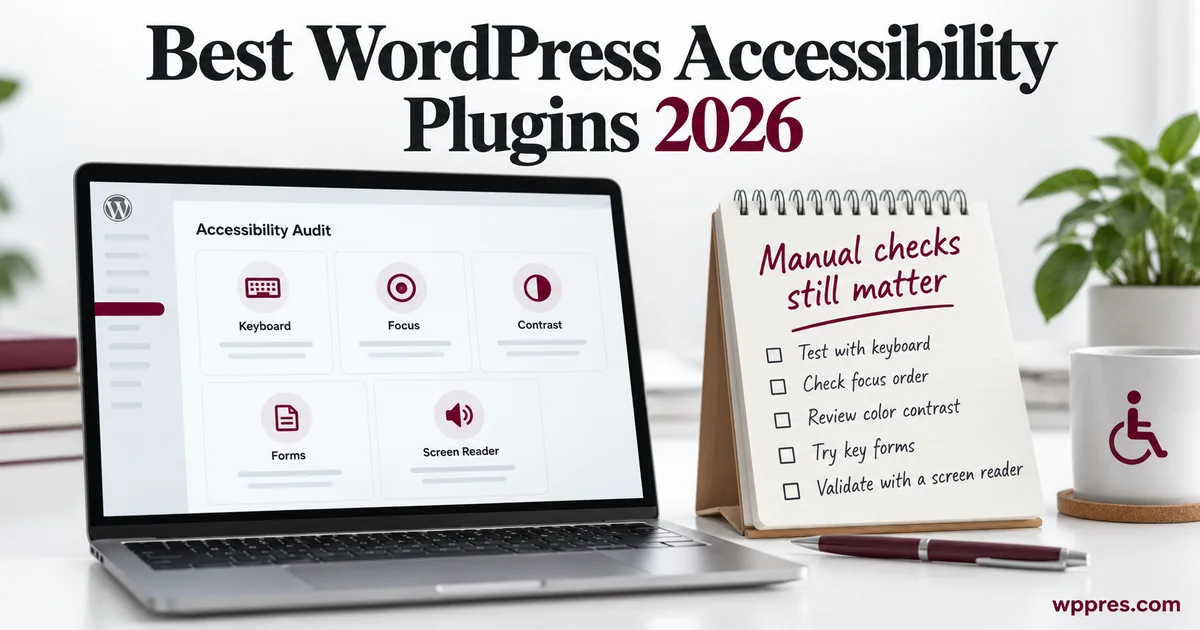
The W3C is explicit: evaluation tools can identify potential problems, but they cannot determine accessibility. Human judgment is required, and automated results can be false or misleading. Choose a plugin for a specific job—finding issues, applying narrow fixes or offering user preferences—then test the underlying experience.
Best WordPress accessibility plugins compared
| Plugin | Best for | Free version | Current version* | Main limitation |
|---|---|---|---|---|
| Equalize Digital Accessibility Checker | Editor-integrated auditing | Yes | 1.50.1 | Full-site and custom-post reports require Pro |
| WP Accessibility | Targeted theme and core fixes | Yes | 2.4.2 | It is not a comprehensive scanner |
| Ally by Elementor | Guided scans plus usability widget | Yes | 4.1.4 | Free plan limits unique URL scans |
| WP Accessibility Helper | Visitor controls and media/landmark tools | Yes | 0.6.7 | Toolbar changes do not repair every source issue |
| AccessMate | Self-hosted axe-core scans and optional AI | Yes | 1.1.0 | Very new with a tiny install base |
*Versions and compatibility checked through WordPress.org on October 6, 2026.
What an accessibility plugin can and cannot do
| Automated tools can often detect | They cannot reliably judge |
|---|---|
| Missing accessible names or empty alt attributes | Whether alternative text communicates the image’s purpose |
| Some color-contrast failures | Whether focus order and reading order make sense |
| Invalid ARIA and duplicate IDs | Whether a custom widget is understandable with a screen reader |
| Empty links, heading skips and missing labels | Whether instructions, errors and recovery are usable |
| Some keyboard and form-code problems | Whether the complete task works for people with disabilities |
A green automated score means only that the tool did not find failures in the rules it could evaluate. It does not test every WCAG success criterion, every state, every viewport or every assistive technology.
How we evaluated the plugins
- Does the product identify source problems or only add a visitor toolbar?
- Are checks mapped to current WCAG guidance and explained clearly?
- Can editors find the affected element and record manual review?
- Where does scan data go, and does an AI feature transmit page content?
- Can fixes be disabled, reversed and reviewed?
- Does the plugin make a precise claim instead of promising instant legal compliance?
- Is the current version compatible with WordPress 7.1.2?
1. Equalize Digital Accessibility Checker — best auditing workflow
Accessibility Checker is the best fit when editors should see accessibility findings while they write. The free plugin scans unlimited posts and pages on the server, maps more than 40 checks to WCAG guidance and places reports in WordPress. It also includes targeted fixes for common barriers.
The free Personal tier covers post/page reports and 12 automated fixes. Professional was $190 per year for one site, adding bulk full-site scanning, custom post types, archives, centralized issue management and four more fixes. The WordPress.org listing showed 10,000 active installations, a 4.9 rating and WordPress 7.1.2 compatibility.
Use it when
- Content creators need feedback before publication.
- The organization wants on-server scans without a per-page API fee.
- Reviewers need documentation, issue status and an audit workflow.
- WooCommerce or custom post types justify the paid report scope.
Watch out for
Warnings still require judgment. A present alt attribute can be useless, a heading can be technically sequential but misleading, and an automatically added label may not explain a field. The vendor states that the plugin cannot make a site fully accessible on its own.
2. WP Accessibility — best free remediation helper
WP Accessibility is the best free utility for carefully chosen fixes to common theme and WordPress problems. It can add skip links, missing language attributes, focus outlines and form labels; remove harmful tabindex or viewport restrictions; flag missing image alternatives and supply diagnostic tools.
The plugin is maintained by accessibility specialist Joe Dolson and had 60,000 active installations, version 2.4.2 and WordPress 7.1.2 compatibility. Its directory description correctly says most accessibility issues require changes to the theme and that the plugin is not intended to guarantee conformance.
Use it when
- A theme is close to accessible but needs a small set of known remediations.
- You want skip links, focus support and content-authoring reminders without a paid service.
- A developer can test each enabled fix against the theme and plugins.
Watch out for
Do not enable every remediation blindly. JavaScript or CSS changes can conflict with a component’s own semantics and styles. Fix the source theme or plugin when possible, and keep the runtime workaround documented.
3. Ally — best guided scanner plus usability widget
Ally is useful for teams that want scanning, guided fixes, an accessibility statement and visitor preference controls in one interface. The free plan covered one site, five unique URL scans with unlimited rescans of those pages, and a configurable widget. Elementor One adds AI fixes, reusable site-wide fixes and additional widget features.
Ally’s WordPress.org plugin had 500,000 active installations but a 2.9 aggregate rating and was tested through WordPress 7.0.6 when checked. Those signals do not decide quality, but they justify testing account connection, performance, scanner limits and support on a representative staging copy.
Use it when
- A small site wants a guided interface and visitor preference controls.
- The team already uses Elementor services and understands the account/data relationship.
- Five free URL scan slots cover the highest-value templates.
Watch out for
A usability widget can help a visitor adjust presentation, but it does not repair an inaccessible menu, checkout or form. Ally itself says it cannot declare a website fully compliant and identifies captions, meaningful image descriptions and interactive usability as examples requiring human review.
4. WP Accessibility Helper — best broad toolbar controls
WP Accessibility Helper offers many front-end preferences plus media and landmark controls. Options include contrast modes, text resizing, link highlighting, animation control and attachment alt-text management. The plugin had 10,000 active installations, version 0.6.7 and WordPress 7.1.2 compatibility.
Its own documentation says it cannot guarantee an A, AA or AAA result. Treat toolbar features as user preferences and targeted assistance. They do not make the underlying markup, keyboard behavior or content understandable.
Use it when
- Visitors have asked for specific display preferences.
- The team will test keyboard behavior and responsive layouts after enabling the widget.
- Media-library and landmark helpers address known workflow gaps.
Watch out for
Features that rewrite roles, colors, typography or focus can create new conflicts. Enable only what testing shows is useful. Review cookies, performance and the behavior of the toolbar itself with keyboard and screen readers.
5. AccessMate — promising self-hosted scanning, but very new
AccessMate is an emerging option for site-wide axe-core scanning with optional AI explanations and a lightweight toolbar. Its directory description says core scanning is self-hosted and that AI requests go directly to a configured provider. It deliberately avoids claiming that a widget fixes source markup.
At the check date, version 1.1.0 was compatible with WordPress 7.1.2 but had only about 20 active installations and no ratings. That makes it suitable for evaluation on staging, not an unqualified recommendation for a high-risk production workflow.
Use it when
- A developer wants an axe-core-based dashboard and accepts evaluating a young plugin.
- Data locality and direct provider configuration matter.
- The site can test output, updates and uninstall behavior before adoption.
Watch out for
A current rules engine is only part of product maturity. Check permissions, scan storage, update history, performance, false-positive workflow and support. Do not send private page fragments to an AI provider without an approved data policy.
The manual checks no plugin can finish for you
- Keyboard: complete navigation, search, forms, dialogs, cart and checkout without a mouse.
- Focus: verify visible focus, logical order, no traps and sensible focus after updates or errors.
- Screen reader: check landmarks, headings, names, states, instructions and live messages.
- Zoom and reflow: test 200% and 400% zoom without lost content or two-dimensional scrolling where WCAG prohibits it.
- Content: judge whether link text, alternatives, captions and instructions communicate purpose.
- Forms: trigger every error and confirm identification, guidance and recovery.
- Motion and media: verify pause controls, reduced-motion behavior, captions, transcripts and audio description where required.
- Real users: include people with disabilities in testing for important services.
WordPress’s own coding standards target WCAG 2.2 Level AA for new and updated project code and recommend both automated and human tests. Use the workflow from our 20-theme accessibility test as a starting point, then add task-based manual testing.
A practical WordPress accessibility workflow
- Define critical templates and user journeys.
- Run an automated scan and remove duplicate findings.
- Fix source content, theme or plugin code before adding runtime workarounds.
- Retest with keyboard, zoom, responsive reflow and at least one screen reader.
- Record the WCAG criterion, affected component, evidence, owner and status.
- Test regression-prone templates before every release.
- Publish an accurate accessibility statement with a working feedback route.
- Schedule periodic audits and include disabled users in meaningful usability testing.
Frequently asked questions
Can a WordPress plugin make a site WCAG compliant?
No plugin can guarantee full conformance. Accessibility depends on content, theme, plugins, custom code, states and real task usability. Plugins can find or fix a defined subset of issues.
Are accessibility overlays enough?
No. A toolbar may provide useful preferences, but it does not repair every semantic, keyboard, form or content problem. Fix the source and test the experience.
Which plugin is best for a WooCommerce store?
Equalize Digital Accessibility Checker Pro can include WooCommerce content in its wider scan workflow, but checkout still needs manual keyboard, screen-reader, validation and payment testing. Plugin compatibility and custom extensions also matter.
How often should I test accessibility?
Scan during content editing, run automated regression checks on each release and repeat manual task testing after navigation, form, checkout or component changes. A periodic audit helps catch drift.
Sources and update policy
Plugin facts came from official WordPress.org pages and the Accessibility Checker pricing page, checked October 6, 2026. Testing guidance follows the W3C’s evaluation tools guidance and the official WordPress Accessibility Coding Standards.

Leave a Reply