
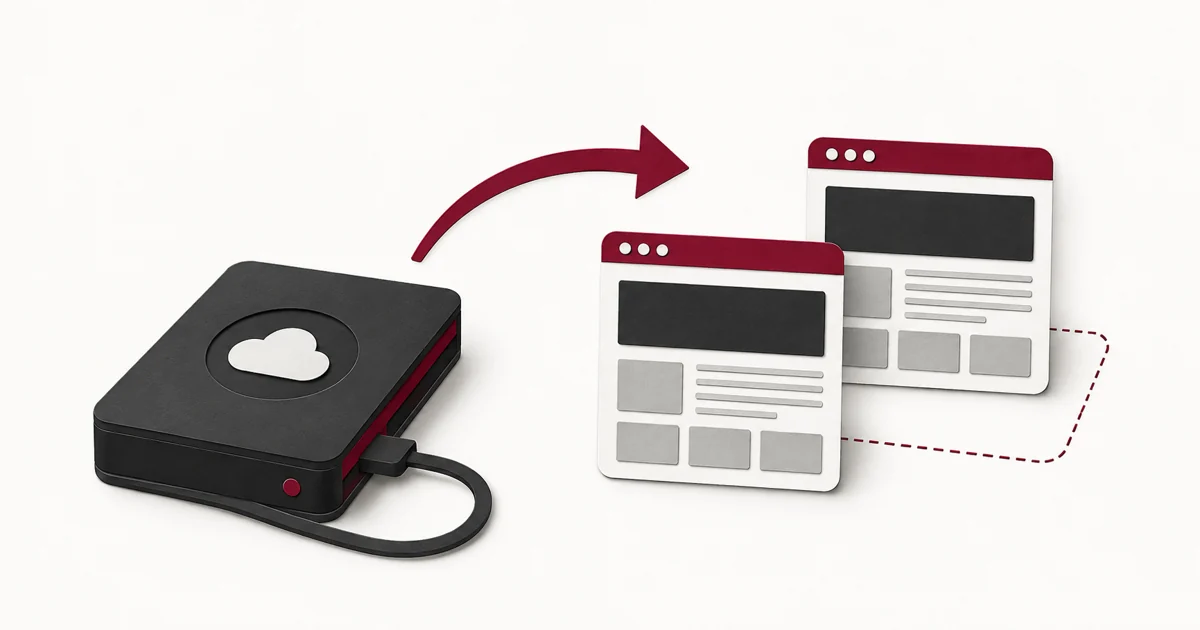
To test a WordPress backup, restore the saved files and database into an isolated environment, then verify content, logins, media, and the actions your visitors rely on. Keep the test copy disconnected from real payments and outbound messages. A completed backup job is useful, but a successful restoration is stronger evidence.
Last updated: September 6, 2026. Skill level: beginner to intermediate.
This is a recovery rehearsal for self-hosted WordPress, not a backup-plugin ranking. It applies to block and Classic Editor sites. The exact import buttons depend on your host or backup tool; the acceptance checks should reflect your own website.
What makes a WordPress backup test meaningful?
A meaningful test starts with an existing backup and proves that you can use it to rebuild a working copy. Cloning the live site directly answers a different question. For recovery planning, you need to know whether the archive you retained contains the right data and can be restored with the access you actually have.
The WordPress backup handbook, reviewed September 5, 2026, distinguishes site files from database information. Make your inventory cover both. A folder of images cannot reconstruct database-only content; a database export does not contain all uploaded files.
Decide what a pass means before importing anything. For a brochure site, that might be working pages and a contact form. A store also needs product variations, order history at the backup point, and a sandbox checkout. Your checklist should make those differences explicit.
What should you gather before restoring a test copy?
Gather the backup date, all archive parts, restoration instructions, decryption details if applicable, and access to an isolated destination. Record the WordPress and PHP versions used by the source. Keep credentials separate from the test report, and do not store backup downloads in a publicly accessible uploads directory.
- Choose one retained backup and record its identifier. Do not quietly substitute a newer live clone if restoration fails.
- Confirm that its database and file components belong to the intended recovery point.
- Download any companion parts required by the backup tool. A split archive may require every segment.
- Confirm that you can retrieve encryption keys or remote-storage access without relying solely on the failed website.
- Note custom directories, must-use plugins, external media storage, and configuration files that the backup excludes.
If your backup process is still undecided, our WordPress backup-plugin comparison covers tool selection. Complete the rehearsal below regardless of which tool you choose.
How do you isolate the restoration environment?
Use a local environment or a host-provided staging area with its own database, files, and access controls. Before the restored application starts, arrange for outbound email, payment requests, webhooks, and scheduled integrations to be blocked or redirected. A copied database can retain working production credentials even when the domain name changes.
Ask your host how staging handles these connections. Do not assume a label saying “staging” disables every plugin’s integrations. Use a mail catcher for test messages and the payment provider’s sandbox credentials for test purchases. Avoid entering real customer information into your test cases.
Password-protect a remotely accessible copy. A search-engine discouragement checkbox helps communicate indexing preferences, but it is not an access restriction. Keep production data available only to the people performing the test.
For a concrete rehearsal, write down the staging URL, its separate database name, the person running the test, and the outbound controls in place. Pause if you cannot distinguish the destination from production. This small record prevents an expensive wrong-environment restore.
How do you restore the backup without touching production?
Open the restoration tool in the isolated destination, select the retained backup, and import its required file and database components. Follow that tool’s instructions for URL changes and configuration. Keep a record of warnings, skipped files, and manual work; a site that only works after undocumented repairs is not yet a repeatable recovery.
- Verify the destination address and database again immediately before import.
- Restore the selected backup using the tool that created it, or its documented compatible restore process.
- Adjust the destination configuration and site URL using the tool’s supported migration procedure.
- Confirm that the test site still has outbound restrictions after restoration.
- Log in with the recovered account and run the checks below.
If your workflow uses WP-CLI for URL replacement, consult the search-replace reference. It supports a dry run and handles serialized data. Do not perform a blind text replacement on a SQL file. Use a reviewed, destination-specific command rather than copying a generic database-changing example.
Which checks should a restored WordPress site pass?
Test representative content and complete user journeys, not just the homepage. Compare the restored result with what existed at the backup time. A missing post published after that timestamp is expected; a missing older upload may indicate an incomplete backup. Record failures with a URL and a reproducible action rather than “looks broken.”
| Area | Test to perform | Evidence to keep |
|---|---|---|
| Content | Open an older article and a recent article included in the backup | URLs and correct text |
| Media | Open full-size files as well as thumbnails | Working image and download examples |
| Administration | Log in and open the editor without saving changes | Successful access and any errors |
| Forms | Submit fictional test data to a mail catcher | Submission record and captured message |
| Store or booking flow | Complete a sandbox transaction if applicable | Test order or booking identifier |
| Navigation | Follow menus, archives, and important internal links | Correct destination URLs |
Also check the browser console and the host’s error log for errors triggered during the rehearsal. A visually correct page can still have a broken form or an integration pointing to the wrong environment.
For core-file integrity, follow our WP-CLI checksum guide. That check complements a restoration test; it cannot establish that your business workflows function correctly.
How should you record and repeat the test?
Record the backup selected, restoration start and finish, checks passed, unresolved failures, and changes needed to make the copy work. Choose a repeat schedule based on how often valuable data changes. Repeat after a major hosting, backup-tool, or application change rather than assuming the previous rehearsal covers a different setup.
Use this compact record for each run:
Backup identifier and timestamp:
Isolated destination:
Outbound messages and payments blocked:
Restoration started / completed:
Content and media checks:
Login and form checks:
Store or booking checks, if applicable:
Failures and recovery owner:
Next rehearsal date:
For a site receiving orders throughout the day, discuss acceptable data loss before restoring an older production database. A backup can be technically valid and still be too old for the business. Keep that decision separate from the laboratory test.
Once the evidence is saved, remove the disposable copy through your host’s normal process or retain it with appropriate restrictions. Keep the usable backup outside that environment. Pair recovery planning with the broader WordPress security controls appropriate for your site.
Frequently asked questions
Is opening the backup ZIP enough?
No. Opening an archive checks only a small part of the process. Restore it and verify the resulting application, including the database and the workflows visitors need.
Can I test a backup on my live website?
Use an isolated destination. A live restore can overwrite current content or orders and trigger integrations. A recovery rehearsal should not become an accidental production rollback.
Should a test restore send real emails?
No. Route messages to a test mail catcher or block outbound delivery. Confirm this before starting the restored application because copied settings may retain production connections.
How often should I repeat the test?
Choose a schedule that matches the value and frequency of your data changes. Repeat after meaningful infrastructure or backup changes, and document the outcome each time.
